React Conditional Rendering with the Ternary Operator & AND Operator

JSX only allows you to use JavaScript expressions within curly braces. It does not allow you to enclose JavaScript statements.

So if you wanted to use a condition to decide which content to render on the screen, you COULD NOT use a statement like this:

return <div>{
   if (isLoggedIn === true){
      return <h1>My Favorite Foods</h1>
   } else {
      return <p>My Least Favorite Foods</p>
   }
}</div>;

Instead, you would have to use a ternary operator. This is how ternary operators work:

condition ? do if true : do if false
foodAtHome === true ? makeFood() : buyFood()

So this is how you would accomplish the task from above:

return <div>{
   isLoggedIn === true ? <h1>My Favorite Foods</h1> : <p> My Least Favorite Foods</p>
}</div>;

Another way you can incorporate logic into your JSX objects is with the AND operator. The AND operator in React checks if the first condition is true or false. If true, it looks to see if the expression is also true then displays the expression. If the statement is false, it will not even look at the expression.

condition && expression
true && expression
false && -expression-

Here’s an example of the AND operator:

return <div>{
   currentTime > 12 && <h1>It's not the morning</h1>
}</div>;

JavaScript ES6 Arrow Functions

Arrow functions are just a shorter way of writing a JavaScript function.

This is an example of using a square function within the JS map function to easily loop through a list of numbers.

var numbers = [1, 2, 3, 4, 5];

const newNumbers = numbers.map(function square(x) {
   return x * x;
});

We can remove the word “square” from our function. Now, the function within the map function is an anonymous function.

var numbers = [1, 2, 3, 4, 5];

const newNumbers = numbers.map(function(x) {
   return x * x;
});

We can make this even simpler by turning the anonymous function into an arrow function.

var numbers = [1, 2, 3, 4, 5];

const newNumbers = numbers.map(x => x * x);

The first x is the parameter; the x * x is an expression. Since the contents of the function are only 1 line, we can remove the return keyword and the curly braces. We can also remove the parentheses from around the parameter since there is only 1 parameter.

Here are some more arrow function examples.

const newNumbers = numbers.map((x, y) => x * y);
const newNumbers = numbers.map(x => {
   return x * x;
});

Mapping React Components

We can use the JavaScript map function to make our code a lot cleaner when creating multiple components of the same type from a JSON-type data source.

So instead of having something like this:

function App() {
   return (
      <div>
         <Card 
            name={contacts[0].name}
            img={contacts[0].img}
            tel={contacts[0].phone}
          />
          <Card 
            name={contacts[1].name}
            img={contacts[1].img}
            tel={contacts[1].phone}
           />
          <Card 
            name={contacts[2].name}
            img={contacts[2].img}
            tel={contacts[2].phone}
           />
         ...

We can use something like this:

function createCard(contact) {
   return <Card name={contact.name} img={contact.img} />
}

function App() {
   return (
      <div>
         {contacts.map(createCard)}
         ...

We still have something to fix though. Once you run your new code, you should get this warning:

This is because we don’t have a key prop in our child components. The key must be unique among each of the mapped components.

function createCard(contact) {
   return <Card 
      key={contact.id}
      name={contact.name} 
      img={contact.img} 
   />
}

The key CANNOT be used as a property in the component’s props array. The key is for React to use, not us.

How to Set up React DevTools on Google Chrome

Sometimes it will make sense to have components within components. Or components within components within components. Over time, if you accumulate a lot of properties and components, it can be hard to keep track of everything. React DevTools can help with that.

React DevTools show your React DOM tree.

How to Install React DevTools

  1. Open Google Chrome
  2. Go to https://chrome.google.com/webstore
  3. Search and open “React Developer Tools”
  4. Press the “Add to Chrome” button

Once it is done installing, you should see a new symbol show up next to your search bar

How to Use React DevTools

  1. Open up Chrome Developer Tools (View > Developer > Developer Tools)
  2. Open the Components tab
  3. You should see your React DOM tree

How to Fix Problems w/ create-react-app

Possible Problems

You run npx create-react-app my-app and it only tells you npx installed without generating a new project.

You successfully create a new React project but there’s no server.js file in the project. It may give you this error when you run npm start: “missing script: start”

Solution

Installing create-react-app globally is now discouraged. Instead uninstall globally installed create-react-app package by doing:

npm uninstall -g create-react-app

Then, just try creating a new React project:

npx create-react-app my-app

Local Environment Setup for React Development (Mac)

  1. Check Node is up to date
  2. Install VSCode (optional)
  3. Create React app
  4. Run app

1. Check Node is up to date

Go to https://nodejs.org/en/

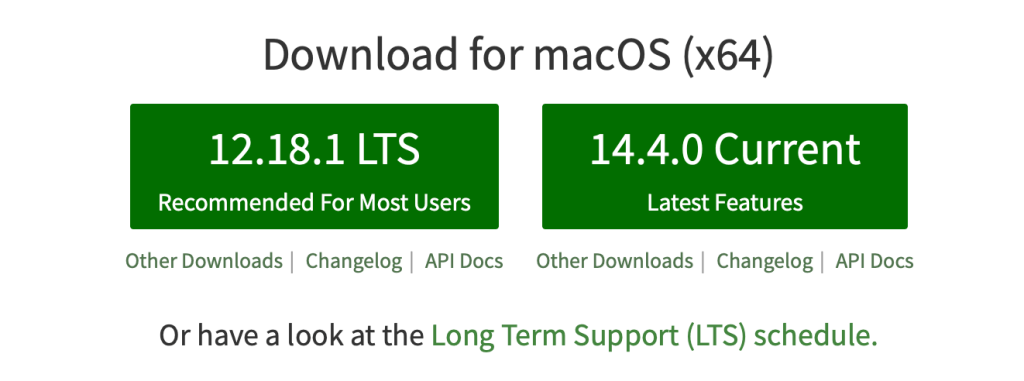
The left button shows the latest stable version of Node. In this case, it’s 12.18.1

Check your Node version in Terminal with this command:

node --version

Make sure your version is the latest stable version.

2. Install VSCode

You don’t have to use VSCode as your code editor, but many recommend it because it has a lot of extensions that make it really easy to work with React.

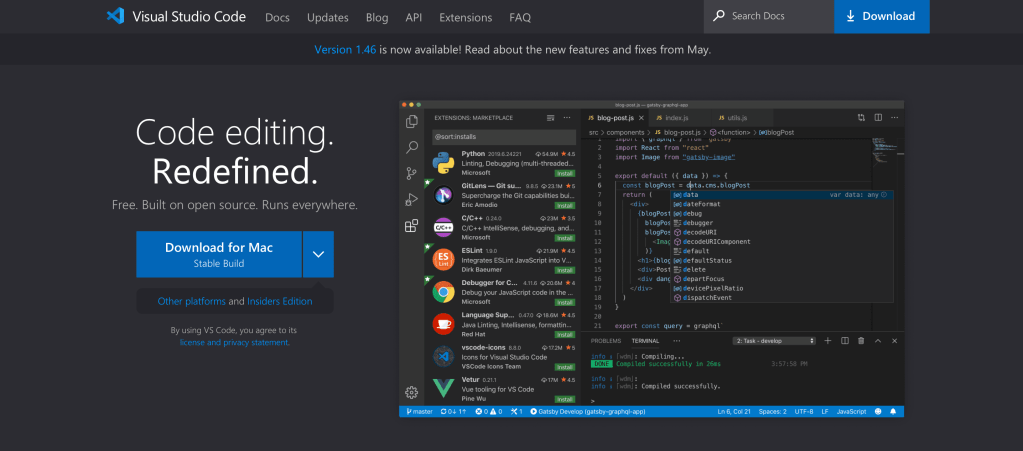
Go to https://code.visualstudio.com. Download for Mac

3. Create React app

In Terminal:

npx create-react-app my-app

If that doesn’t work, install with npm or yarn:

npm init react-app my-app
yarn create react-app my-app

4. Run app

cd my-app
npm start or yarn start

You should automatically be taken to your browser. It should show this page:

Node.js User Authentication with Bcrypt

In this lesson, we will be allowing users to create accounts, disguising their passwords to prevent hackers from stealing them, saving the accounts in a MongoDB database, and allowing users to log in with their account info.

In your project directory in Terminal, use this command to create a package.json file for your project

npm init -y

Any project that is using Node.js needs a package.json file. The file contains the project’s dependencies, source control information, and specific metadata.

Now install all the packages that our project will need using npm.

npm i express body-parser ejs mongoose bcrypt

I will show you how to set up the app.js file, but you’ll have to design the ejs (or html) and css files on your own.

In general, though, you’ll want to include something like this in your login & signup files:

<form action="/login" method="POST">
   <div class="form-group">
       <label for="email">Email</label>
       <input type="email" class="form-control" name="username">
   </div>
   <div class="form-group">
        <label for="password">Password</label>
        <input type="password" class="form-control" name="password">
   </div>
   <button type="submit" class="btn btn-dark">Login</button>
</form>

You will need a form that has an action parameter that posts to a route. You will take the user’s input using named input tags that can be referenced in the server file.

In your app.js file, require all the packages we installed earlier. Also create a saltRounds variable and set it to 10. We will use it later to salt our passwords.

const express = require("express");
const bodyParser = require("body-parser");
const ejs = require("ejs");
const mongoose = require("mongoose");
const bcrypt = require("bcrypt");
const saltRounds = 10;

More standard setup:

const app = express();

app.use(express.static("public"));
app.set('view engine', 'ejs');
app.use(bodyParser.urlencoded({
  extended: true
}));

mongoose.connect("mongodb://localhost:27017/authtestDB", {useNewUrlParser: true});

Create the User Model in MongoDB:

const userSchema = new mongoose.Schema ({
  email: String,
  password: String
});


const User = new mongoose.model("User", userSchema);

Set up the get routes so users can get to the different pages:

app.get("/", function(req, res){
  res.render("home");
});

app.get("/login", function(req, res){
  res.render("login");
});

app.get("/register", function(req, res){
  res.render("register");
});

Handle users entering their information into the login and register forms:

Posting to the Register Route

As you can see, we are using the bcrypt hash function. The function takes in the password given by the user in the request, the number of salt rounds (defined above), or times we want our password to be salted , and a callback function that can either return an error or the hashed (encrypted) password.

A new user based on our Mongo User Model is created using the username from the request and the encrypted password. Then, that user is saved into the MongoDB. If successful, the server will navigate the user to pages that require authentication.

app.post("/register", function(req, res){
  bcrypt.hash(req.body.password, saltRounds, function(err, hash) {
    const newUser =  new User({
      email: req.body.username,
      password: hash
    });
    newUser.save(function(err){
      if (err) {
        console.log(err);
      } else {
        res.render("secrets");
      }
    });
  });

});
Posting to the Login Route

First, using the findOne function, we see if there are any emails in our database that match the one inputted by the user. This findOne function can return either an error or a found user/ matching user. If a user is found for the inputted email, bcrypt will proceed to compare the inputted password with the password for the email in the database. If it’s another match (result === true), the server will navigate the user to pages that require authentication.

app.post("/login", function(req, res){
  const username = req.body.username;
  const password = req.body.password;

  User.findOne({email: username}, function(err, foundUser){
    if (err) {
      console.log(err);
    } else {
      if (foundUser) {
        bcrypt.compare(password, foundUser.password, function(err, result) {
          if (result === true) {
            res.render("secrets");
          }
        });
      }
    }
  });
});

Neural Networks: Perceptrons & Sigmoid Neurons

A neural network is a deep learning system that is modeled after the human brain and the way biological organisms learn.

A perceptron is a single layer of a neural network. It takes in a few binary inputs, or yes or no inputs, and outputs a single binary output. Binary objects can have a value of either 0 (meaning no) or 1 (meaning yes). This is a model of a perceptron:

It looks confusing, but you don’t have to understand all of the symbols. Just know that x1, x2, and x3 are the 3 binary inputs into the neural network, the big circle in the middle is the decider, and the z is the yes or no output.

As an example, let’s use a perceptron to decide if I will or will not go out to get food. I will put in some considerations (x1, x2, x3) and make a yes or no decision. These will be my inputs, or factors that will affect my decision of whether to eat out or not:

  • x1 = Food at home = 0
  • x2 = Tired = 1
  • x3 = Have cash = 1

If I have food at home, I will not go out to eat. If I have cash and/or I’m too tired to cook, I will go out to eat. But what if all 3 of these conditions are true? I have food at home, but I also have cash. Then, we have a conflicting yes and no. That’s why we need to add weights to our perceptron.

Weights are multipliers that show how important each input is to our final decision. I will add some weights to our inputs:

  • x1 = Food at home = 1 x -3
  • x2 = Tired = 1 x 3
  • x3 = Have cash = 1 x 6

So if there was a day when I had food at home, I was tired, and I had cash: -3 + 3 + 6 = 6. I get 6 which is not a binary (0 or 1) output. Now that we’ve added weights, we have to figure out a way to change the output to be yes or no.

(By the way the w1, w2, and w3 in the above diagram are the weights added to the inputs)

We can achieve this by using sigmoid neurons instead of perceptrons. Sigmoid neurons are basically the same as perceptrons except they use decimals between 0 and 1 to make sure our output always comes out as a number between 0 and 1.

Let’s modify our inputs to reflect more ambiguous circumstances using sigmoid neurons. Let’s say I have food at home, but I don’t like the food. I’m only kind of tired. I barely have enough cash. I will give them values between 0 and 1 based on the particular situation.

  • x1 = Food at home = 0.5
  • x2 = Tired = 0.3
  • x3 = Have cash = 0.9

Now we will add the same weights:

  • x1 = Food at home = 0.5 x -3
  • x2 = Tired = 0.3 x 3
  • x3 = Have cash = 0.9 x 6

-1.5 + 0.9 + 5.4 = 4.8

Then, we would take the number 4.8 and turn it into a number between 0 and 1 using the sigmoid function.

An entire neural network is a multilayer perceptron or multiple layers of sigmoid neurons.

What is Theano?

Theano is an open source Python library for building neural networks.

In its most basic form, Theano is an optimizing compiler for mathematical expressions. It is specially designed to handle the computation required for large neural network algorithms used in Deep Learning.

Theano is written in Python & works well with Python libraries such as NumPy.

It was created at MILA (Montreal Institute for Learning Algorithms) at the University of Montreal. Development on the project started in 2007 and Theano has been around for over a decade. It is a pioneer in the field of Deep Learning research and development. It is the tool behind many research breakthroughs.