Auto-Format Python on Save in VS Code with Black

Want to keep your Python code clean and consistent without thinking about it? You can automatically format your Python files every time you save them in Visual Studio Code using the Black formatter.

Here’s how to set it up:


🔌 Step 1: Install the Black Formatter

  1. Open VS Code.
  2. Go to the Extensions Marketplace (the square icon on the sidebar or use shortcut Cmd+Shift+X on macOS, Ctrl+Shift+X on Windows).
  3. Search for “Black Formatter” by Microsoft.
  4. Click Install.

⚙️ Step 2: Open VS Code Settings

You can access settings with:

  • macOS: Cmd + ,
  • Windows: Ctrl + ,

Then click the Open Settings (JSON) icon in the top right (looks like a page with {}) to open the settings.json file.
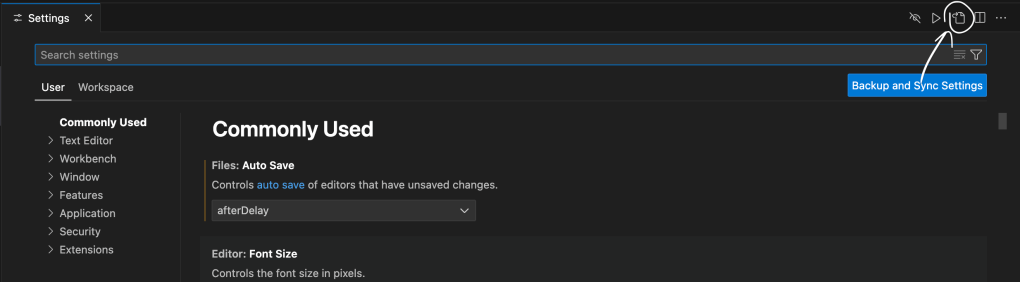

📝 Step 3: Add Python Format-on-Save Settings

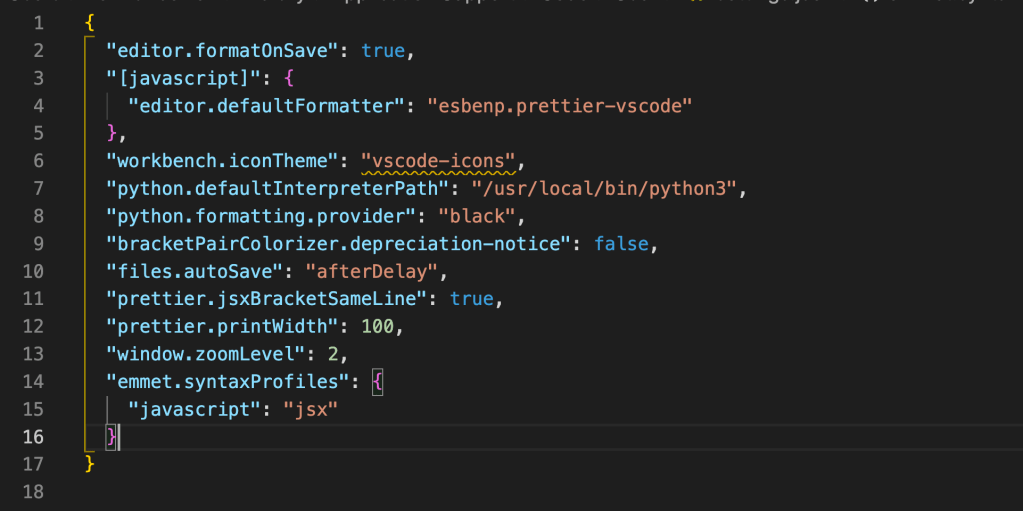
Inside settings.json, add the following:

jsonCopyEdit"[python]": {
"editor.formatOnSave": true,
"editor.defaultFormatter": "ms-python.black-formatter"
}

Optional Formatting Settings

You can also include:

jsonCopyEdit"editor.tabSize": 4,
"editor.insertSpaces": true,
  • "editor.tabSize": 4 ensures indentation uses 4 spaces per level (Python standard).
  • "editor.insertSpaces": true replaces tabs with spaces (again, best practice in Python).

🔄 Step 4: Restart VS Code

After saving your settings.json, you may need to close and reopen VS Code for changes to fully apply.


✅ That’s It!

Now, whenever you save a .py file in VS Code, Black will automatically format it based on its strict, opinionated style — helping you write cleaner, more consistent code effortlessly.

How to Open VS Code settings.json file

This short tutorial will be on how to open the settings.json file in VS Code on Mac.

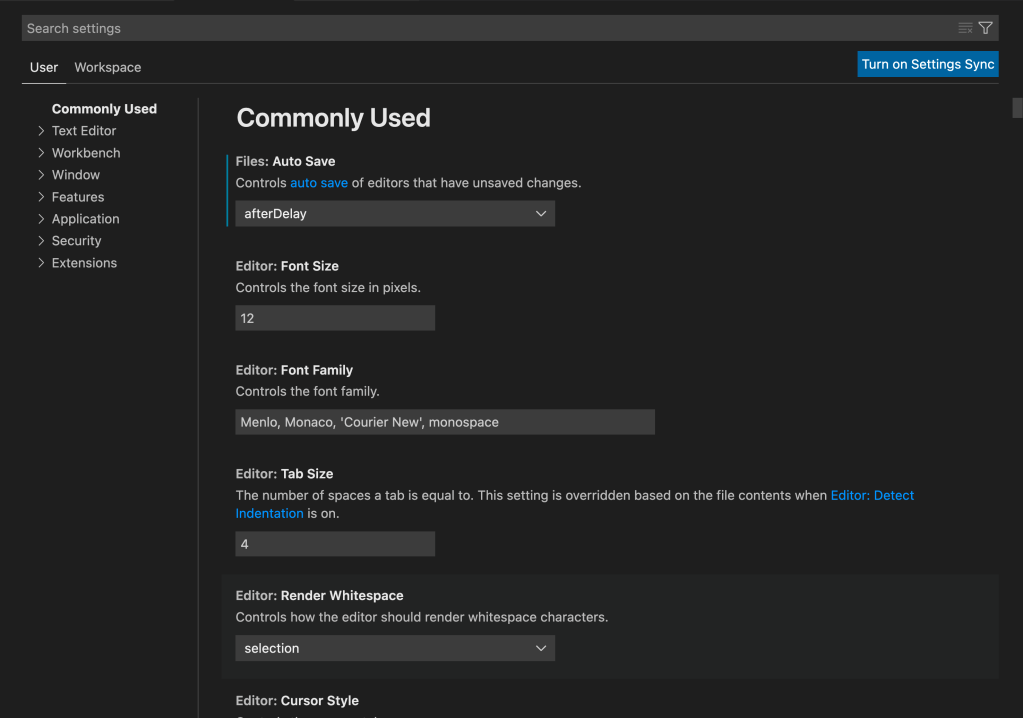
In the menu bar, navigate to Code > Preferences > Settings.

This will open the Settings UI page, which looks like this:

In the upper right-hand corner of the page, click the Open Settings (JSON) icon.

Now, you have opened the settings.json file!

How to Connect to a Remote Server with SSH on VSCode

Install VSCode

Please check the VSCode homepage. https://code.visualstudio.com/.

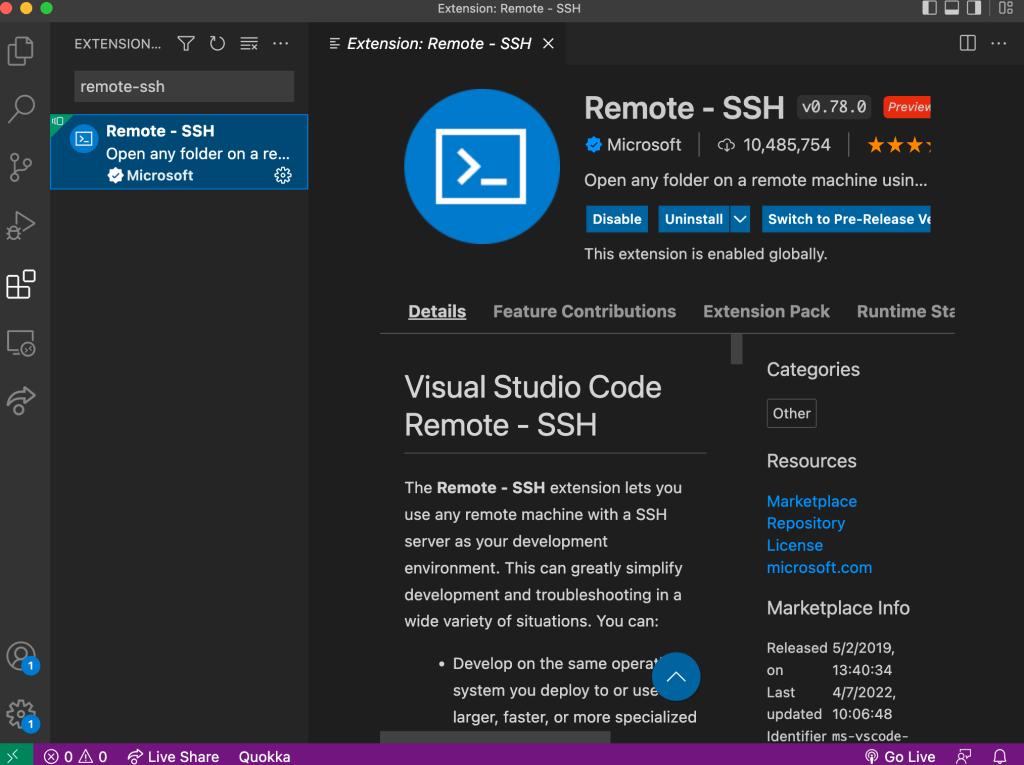
Install remote-ssh extension in VSCode

  1. Open the VSCode. On the left, there’s an Extension icon.
  2. Search for remote-ssh. Choose the first one and click install.
  3. You may need to reload VSCode to let the extension initialize.

Connect to the remote server

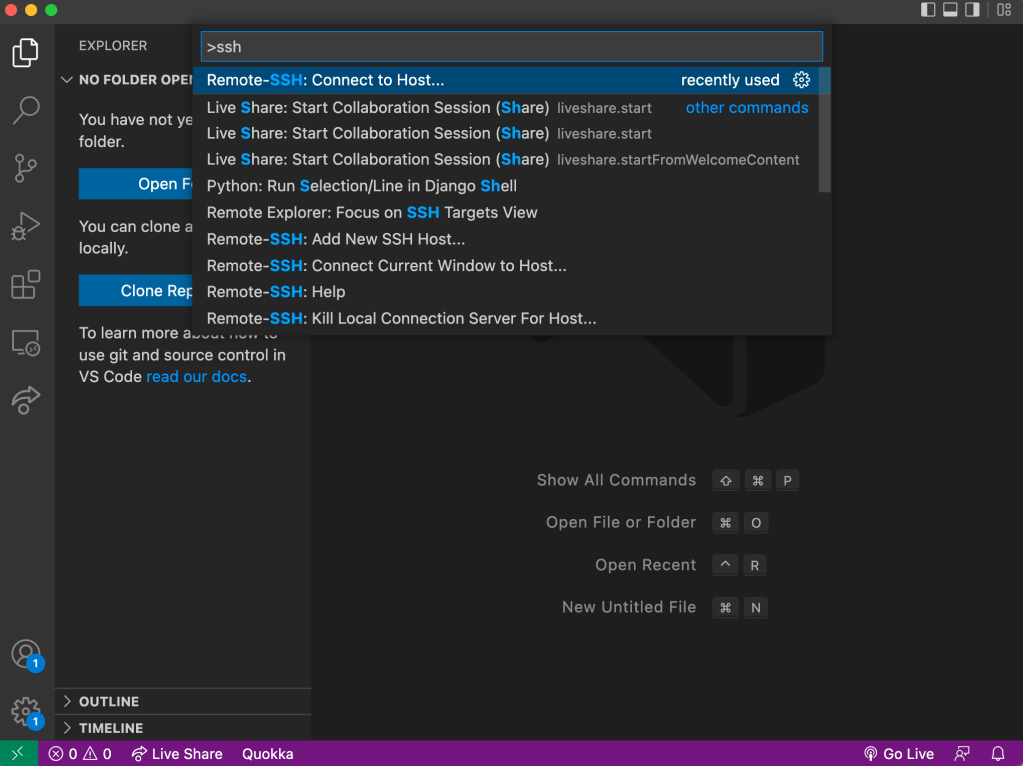
  1. Click View > Command Palette… or use the shortcut cmd+shift+p for Mac and ctrl+shift+p Windows. Type ssh and choose remote-ssh: connect to host.

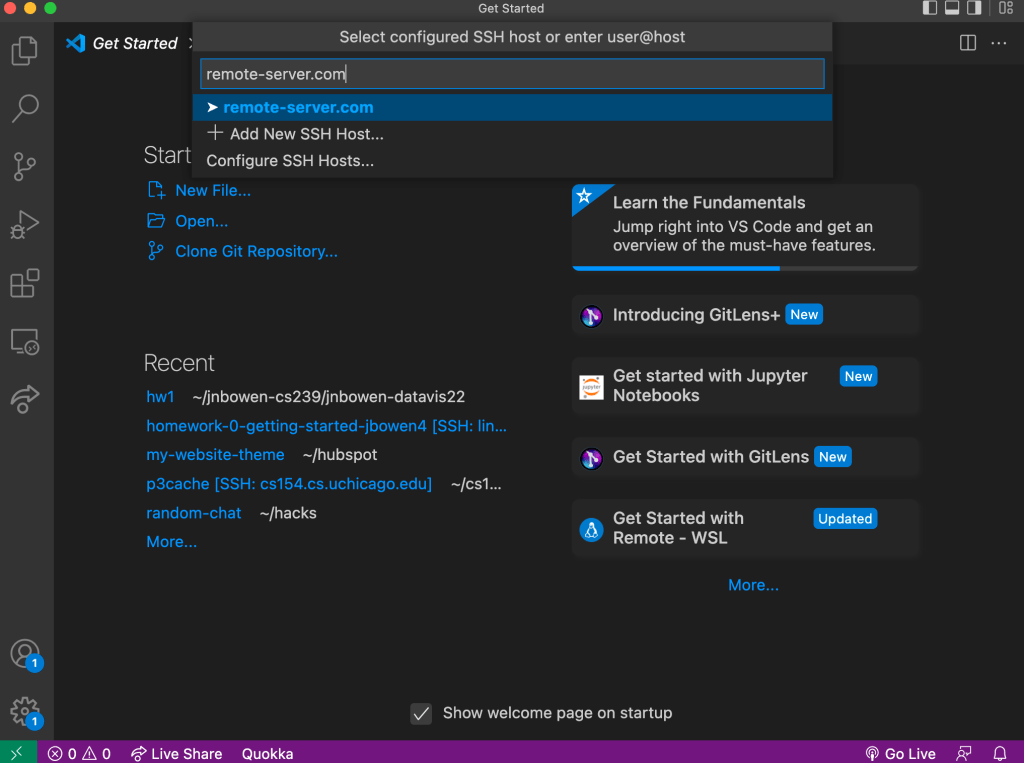
2. Type the URL of the remote server

3. After that, it will open a new VSCode window.

Add your workspace

  1. After connect to the remote server, we need to cd to our workspace. Call your Command Palette again and type folder. Choose Add folder to your workspace in my case and enter your path to workspace.

How to Format on Save in VSCode

If format on save was previously not working for you, this is what fixed it for me.

  1. Install Prettier in VSCode (https://marketplace.visualstudio.com/items?itemName=esbenp.prettier-vscode)
  2. Open Settings pane (Command + ,)
  3. Make sure the Editor: Format on Save property is enabled (You can search and find the property in the search bar)
  4. Set the Editor: Default Formatter to Prettier – Code formatter