What is a Static Website?

A static website is a website that only contains only contains HTML, CSS, and/or (client-side) JS files.

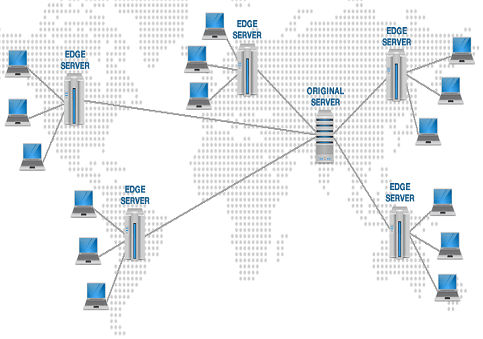
Static simply means that the site is not generated on the server. Instead of being rendered dynamically, the HTML, CSS, and JS just sit there waiting on a server for a user to request them. Every user will see the same version of the files.

Static does NOT mean that the page never changes — it’s just pre-built during development. You can still make pages interactive with client-side JavaScript, API calls, etc. Any rendering/changing that is done happens in the browser.

Rendering in the browser means faster changes because you don’t have to wait for information from the server with each update, but the data needs to be fetched after the initial rendering so the initial rendering is slower than a dynamic website/ server-side rendering.

It’s very important these days that things update constantly and that we give immediate feedback. That tends to be easy with static apps because JavaScript runs in the browser, you don’t need to wait for a response from the server to change things. Although, the first page load is slower with static sites than dynamic sites because the data needs to be fetched from the server after the initial render of the static HTML files.

Some advantages of static websites:

  1. Speed/ performance
  2. Version control for content
  3. Security
  4. Less hassle with the server
  5. Traffic surges
  6. Only static host is needed (i.e. it only needs to serve HTML, JS, CSS)
    • Static hosts tend to be cheaper, setup is typically easier (ex. AWS S3, Firebase Hosting)

Some disadvantages of static websites:

  1. No real-time content
  2. No user input
  3. No admin UI
    • As opposed to the incredibly easy publishing processes of sites such as WordPress or Medium, posts on static sites are typically written in Markdown & require the regeneration of the site (watch functionality does this automatically) in order to publish them and deploy the files to a server
  4. You might get performance issues since server might be more powerful than user’s browser
  5. SEO inefficiencies: search engine may not see the client-side rendered data, it only sees what’s initially on the page
  6. JavaScript in the browser can be dangerous security-wise

How to Use CSS Flexbox

First, set the display of your container div to be flex.

div {
   display: flex;
} 

When you set a container to display: flex, the browser will automatically format the child elements to all be inline with each other. You can use each child’s flex property to define the width that they take up on the line.

The larger the flex value, the more space it will take up compared to the other elements on the line. For example, if there are 2 elements within the flexbox container (an image and a paragraph), if you set the image’s flex property value to 1 and the paragraph’s to 2, the paragraph will take up 2/3 of the space and the image will take up 1/3 of the space.

Horizontally and vertically align child elements within flexbox container

Let’s say I had a header within my flexbox div and I wanted to center it both horizontally and vertically. I would simply set align-items and justify-content to center:

header {
   align-items: center;
   justify-content: center;
}

The align-items property controls alignment of all items on the cross axis and the justify-content property controls alignment of all items on the main axis.

The align-items and align-self properties control alignment of our flex items on the cross axis, down the columns if flex-direction is row and along the row if flex-direction is column.

Main axis: left to right if flex-direction is row; up and down if flex-direction is column

Web Hosting

When you’re developing your website, most times it will only be available on your local system. In order make it accessible to anyone, your website must be hosted on a server. A server is a powerful computer that must stay online 24/7 ready to serve up data for the websites it houses.

Servers are physically located in data centers, which are typically run and managed by different web hosting companies.

There are different types of servers with different benefits and drawbacks, thus there are different types of web hosting.

Types of Web Hosting

  1. Shared Hosting
  2. VPS Hosting
  3. Dedicated Hosting
  4. Cloud Hosting
  5. Methods of Hosting
    1. Managed Hosting
    2. Static Hosting

Shared Hosting

  • Most basic type of hosting
  • Cost-effective
  • Good for small/unpopular websites
  • Share resources w/ other websites on a single server
    • If another website on your server has a traffic spike, it could negatively affect your site’s performance
  • Easy to set up. Doesn’t require much technical knowledge

Great for beginners & small websites; those who don’t require much on-site interaction (10 – 20,000 month visits)

BlueHost

VPS Hosting

Virtual Private Server (VPS) Hosting is a middle-ground between Shared Hosting and Dedicated Hosting. Typically, when a website outgrows Shared Hosting, it will migrate to VPS Hosting.

With VPS Hosting, you are still sharing a server with other websites, but not as many. The server is broken up into smaller “virtual” servers with their own individual configurations.

This hosting benefits tech-savvy website owners because it allows them to make custom changes to their server configuration.

Pros:

  • Dedicated server resources.
  • Ability to make custom configurations to your server.
  • Higher uptime rates and faster loading speeds.
  • More cost-effective than a dedicated server.

Cons:

  • Sharing the main server with other websites.
  • Not as easy to set up as a shared server.
  • Still has limitations in terms of what you can control.

InMotion

Dedicated Hosting

With Dedicated Hosting, you will have a server that belongs to you and only you.

They’re great because…

  • Top of the line in web hosting
  • Site operates at peak performance
  • Complete technical control over server

But they also have problems such as…

  • one of the most expensive web hosting options
  • high level of tech expertise required for installation & management

Dedicated Hosting is mostly for websites that get a high-level of traffic (>100,000 monthly visits), need the highest level of security, and/or need complete control of their server configuration.

HostGator

Cloud Hosting

Cloud hosting is a newer type of web hosting. It can best be described as a hybrid version of a VPS, but more cost-effective.

Unlike traditional hosting in which your website is stored on a single server, cloud hosting plans come with multiple servers, each with its own responsibilities. If one goes down, the others help to pick up the slack, making your website more immune to server malfunctions.

Pros:

  • High security
  • Scale resources on demand & only pay for what you need
  • Less unexpected downtime

Cons:

  • Pricing isn’t always fixed
  • Unpredictable traffic can increase costs
  • Limited customization

Methods of Hosting

I couldn’t really think of the perfect word to differentiate them, so I just went with methods, but basically by “Methods of Hosting” I mean that it is not a different type of server but rather a particular way of using a server / type of web hosting.

Managed Hosting

Managed Hosting isn’t so much a type of hosting as an IT provisioning model. All managed hosting entails is that the hosting company will handle the hardware and software setup, configuration, and maintenance of your server resources. Most hosting packages you will find online are likely to be managed.

Static Hosting

Static Hosting is basically hosting for static websites. Static websites are fixed-content, HTML-based websites that display the same information to all visitors. 

Static websites and static hosting have re-emerged as an effective way of stripping the unnecessary complexities from the (simple) web development process. They are great for performance and simplicity if you don’t need anything rendered on the server.

“Cheap” Static Hosting Options: Bluehost, Hostinger, etc.

Free Static Hosting Options: Github Pages, Netlify, Amazon S3, Firebase

Which option best fits you?

Shared Hosting: The most cost-effective option for low traffic websites

VPS Hosting: websites that have outgrown shared hosting

Dedicated Hosting: Enterprise-level servers for large websites

Cloud Hosting: Works best for websites that are growing rapidly and need scalable resources

How Does the Internet Work?

The Internet is really just a giant wire. It connects every computer in the world (with Internet access) to each other. Two computers in entirely different corners of the world can communicate and transfer data back and forth through the Internet.

Some of these computers attached to the Internet have a very special job. They have to be online 24/7 ready to serve you all of the data and the files that you are requesting when you try to access websites. These computers that are doing that job are called servers. A computer that an everyday user uses to access the Internet is called a client.

Internet Service Provider (ISP): the company you pay to get access to the Internet. In the US, for example, this would be companies like Comcast & AT&T

DNS Server: responsible for translating domain names to numeric IP addresses; Domain Name System Server

IP address: postal address for your computer; every single computer connected to the Internet has an IP address

Internet Backbone: underwater cables that connect across the world that power the Internet

  1. Client requests a website (ex. https://google.com)
  2. Browser sends a message to ISP
  3. ISP relays request to a DNS Server
  4. DNS Server looks up website’s IP address in its database (216.58.210.46)
  5. DNS Server finds the IP address & sends it back to browser
  6. Now knowing the exact address, the client makes a direct request to the address through the ISP
  7. Request goes through ISP then through Internet Backbone and ends up at the Server that is located at the IP address
  8. Server sends all of the files back to client through the Internet Backbone and ISP

Type this IP address into your browser (216.58.210.46) and the browser will serve up the Google Home page.

Internet backbone - Wikipedia
The Internet Backbone’s wires literally span across the entire globe, hidden underwater

How to use the express-validator package

The express-validator package is an npm package that makes it much easier to validate input fields (for user authentication).

First, at the top of our server file, we need to get access to the check and validationResult methods from express-validator:

const { check, validationResult } = require('express-validator/check');

Then, when you are handling the post route of a form, you can implement validation. First, you add a new parameter to the post method; it should be an empty JS array:

app.post('/', [], (req, res) => {
});

Within the array, run the check function on each field and give it the requirements you want to check for. For example, you can check if the input is an email or has a minimum length:

app.post('/', [
   // username must be an email
   check('username').isEmail(),
   // password must be at least 5 chars long
   check('password').isLength({ min: 5 })
], (req, res) => {
});

Then, in the callback, you create a variable called errors to hold any errors from the validation checks in the above array:

app.post('/', [
   check('username').isEmail(),
   check('password').isLength({ min: 5 })
], (req, res) => {
   // Finds the validation errors in this request and puts them in an array called errors
   const errors = validationResult(req);
});

Then, we check if the errors object holds an errors. If so, we can do stuff with the errors. If not, we can do stuff with the inputs:

app.post('/', [
   check('username').isEmail(),
   check('password').isLength({ min: 5 })
], (req, res) => {
   const errors = validationResult(req);

   if (!errors.isEmpty()) {
      return res.status(400).json({ errors: errors.array() });
   }

   User.create({
      username: req.body.username,
      password: req.body.password
   }).then(user => res.json(user));
});

In the event of an error, we send a 400 Bad Request using res.status(400). This simply means that things didn’t go as planned. Then, we get an array of error messages that correspond with the input validations that failed. The json response object will look something like this:

{
   "errors": [
      {
         "location": "body",
         "params": "username",
         "msg": "Insert custom or default error message here",
      }, 
      {
         "location": "body",
         "params": "password",
         "msg": "Please enter a correct password",
      }
   ]
}

More on the check function

We can pass a second optional parameter into the check function which will serve as a custom error message. If we don’t pass this parameter, it will give some generic error message.

check('name', 'Name is required')

Check if a field is empty

check('name', 'Name is required').not().isEmpty()

What is React.js?

React.js is a JavaScript library for building user interfaces. It is a front-end web framework. React.js breaks down the user interface into customizable components. It combines pieces of HTML, CSS, and JavaScript in each component. It allows the browser to refresh a single component without having to refresh the entire page. It is one of the most popular and in-demand web frameworks

Most people put all of their body content within a div with the id “root.” This is React convention.

<div id="root">
</div>

Before we can start coding, we must install our dependencies

npm i react react-dom
ReactDOM.render(WHAT TO SHOW, WHERE TO SHOW it, optional callback after render function completed)
var React = require("react");
var ReactDOM = require("react-dom");

ReactDOM.render(<h1>Hello world!</h1>, document.getElementById("root"));

React works by creating these JSX files. HTML is inputted into compiler which converts it into Vanilla JavaScript. The compiler comes from including the React module.

Inside the React Module, there is something called Babel. Babel is a JavaScript compiler. It’s able to take next-gen JavaScript (es6, es7, es8) and compile it down to a version that any browser can understand. This includes compiling JSX into plain JS.

var h1 = document.createElement("h1");
h1.innerHTML = "Hello World!";
document.getElementById("root").appendChild(h1)
import React from "react";
import ReactDOM from "react-dom";

Render method can only take a single HTML element. If you put two back-to-back, it will crash. The way around this is wrapping n elements into a div, so that it’s “1 element.”

ReactDOM.render(
<div>
   <h1>Hello world!</h1>
   <p>This is the first paragraph.</p>
</div>, 
document.getElementById("root")
);
const name = "Joshua";

ReactDOM.render(<h1>Hello {name}!</h1>, document.getElementById("root"));
const num = 4;

ReactDOM.render(<p>Your lucky number is {num}!</p>, document.getElementById("root"));
ReactDOM.render(<p>Your lucky number is {Math.floor(Math.random() * 10)}!</p>, document.getElementById("root"));

You can add any JavaScript value or expression inside the curly braces, but you can’t write JavaScript statements(if statements, etc.)

Styling

External Stylesheets

<h1 class="heading">Title</h1> // no 
<h1 className="heading">Title</h1> // yes

Although it looks like HTML, it’s JSX. It’s being converted to Vanilla JavaScript. There is no “class” property in JS; the correct JS equivalent is the className property.

HTML uses all lowercase. When we write JSX we use camel case because JS uses camel case.

contenteditable vs contentEditable

<h1 contentEditable="true" spellCheck="false">My Favourite Foods</h1>

It is recommended to do all of your styling in an external CSS file then apply those styles to your JSX content with class and id tags.

.heading {
   color: 'red';
}
<h1 className="heading">My Favorite Foods</h1>

Inline Styling

The style property requires a JavaScript object

JavaScript object

{
  key: value,
}
<h1 style="color: 'red'">My Title</h1> // no
<h1 style={{color: 'red'}}>My Title</h1> // yes

Any JavaScript within HTML must be wrapped in curly braces. JavaScript objects must be wrapped in curly braces. Thus, 2 sets of curly braces

const customStyle = {
  color: "red",         // use commas instead of semicolons
  fontSize: "20px",     // font-size becomes fontSize
  border: "1px solid #000" // every value goes in quotes
}

customStyle.color = "blue";  // change styles after definition

ReactDOM.render(
  <div>
    <h1 style={customStyle}>My Favourite Foods</h1>
  </div>,
  document.getElementById("root")
);

React Components

We always capitalize the names of our components because that’s how React differentiates that they are custom components

function Heading() {
   return <h1>My Heading!</h1>
}

ReactDOM.render(
   <div>
      <Heading />
   </div>,
   document.getElementById("root")
);

In the same folder, create a new file called “Heading.jsx”

All of our components separated into individual files with the .jsx extension

import React from "react";

function Heading() {
   return <h1>My Heading!</h1>;
}

export default Heading;

Don’t use parentheses. That will make it run immediately; we want to use it as a component

import React from "react";
import ReactDOM from "react-dom";
import Heading from "./Heading";

Most times, you won’t see any div or child elements in the index.js file. Instead, it will just be a single App custom component.

import React from "react";
import Heading from "./Heading";   // child component
import List from "./List";         // child component

function App(){
   return <div>
      <Heading />
      <List />
   </div>
}

export default App;
ReactDOM.render(
   <App />,
   document.getElementById("root")
);

Create a components folder and put all of your components in it

  • src
    • components
      • App.jsx
      • Heading.jsx
      • List.jsx
  • public
    • index.html
    • styles.css
import App from "./components/App";

Media Query Breakpoints

Why should you care about making your websites responsive?

Around October 2016, the number of people who browse the web on mobile devices overtook the amount of people who browse the web on computers.

Mobile friendliness affects your Google search rankings. You can use Google’s Mobile-Friendly Test website to check the effectiveness of your responsive web design (https://search.google.com/test/mobile-friendly)

What are your options?

  1. Do Nothing
  2. Make a Separate Mobile Site (ex. Facebook)
  3. Make Your Main Website Responsive (My Suggestion)

Media Queries

We use CSS Media Queries to make our websites responsive. There are many different media queries that only run under specific conditions. For example,

@media print {
   h1 {
      color: red;
   }
}

If our website is under the condition of being printed, then this condition will be true and it will apply these styles to the h1 elements on our page.

Some other examples:

@media screen (Dependent on the screen size or screen resolution)

@media speech (Will be activated if the website is being read to a person, such as a visually impaired person)

This is the format for media queries:

@media <type><feature>

For example:

@media screen (min-width: 900px) {
   // Change something
}
Wrapping Flexbox with Media Query
.info {
  display: flex;
  flex-wrap: wrap;
}

@media (max-width: 560px) {
  .info-img, .info-text {
    min-width: 100%;
    text-align: center;
  }
}

How to Run a Project from Github

There’s a lot of benefit in looking at, using, and learning from other people’s code/projects. One of the best places to find such projects is Github.

First, make sure you have npm installed. If you don’t, run this command in Terminal:

npm install npm@latest -g
Installing the Project
  1. Clone the repo
git clone https://github.com/AlanBayWalker/film-cloud.git

2. Run npm install inside project root directory

npm install

3. Start the server

npm run start

4. Explore

Have fun :)

Automatically Fix Vulnerable Dependencies in your Github Repositories

It can be a little alarming at first to see a glaring message from Github warning you of potential security vulnerabilities in the dependencies within your package.json file.

So we know that GitHub sends Dependabot alerts when they detect vulnerabilities affecting your repository. But what exactly do they mean by “vulnerability”?

A vulnerability is a problem in a dependency project’s code that could be exploited to damage the project and thus other projects that use its code (like yours). Vulnerabilities vary in type, severity, and method of attack.

When your code depends on a package that has a security vulnerability, this vulnerable dependency can cause a range of problems for your project or the people who use it.

Letting Github Handle Alerts

You can navigate to your security alerts by clicking the “See Dependabot alerts” button in the yellow warning message at the top of the repository.

Or go to the Security tab > Dependabot alerts

You should see an alert(s) like this:

Make sure you have the “Dependabot security updates” option set to allow Github to automatically initialize pull request updates for vulnerable dependencies:

When Github has found a solution to the vulnerability, it will put a notification in the Pull Request section of your repository. Navigate to this section and you should see a pull request put here by Github:

Merge this pull request into your project and the problem should be solved!

Pushing Local Project to a Github Repo

Github is a tool that allows you to create a remote repository, a repository that’s hosted on somebody else’s server or computer.

You must create an account in order to follow the rest of the tutorial.

  1. In the top right corner of the Github interface, select the “+” icon, then select “New repository.”
  2. Give your new repository a Name and a Description. Choose to make your repository either Public or Private. DO NOT create a README.md file.
  3. After you press “Create repository,” Github will take you to a page with comprehensive instructions on how to create/push to a repository in the Command Line.

In Command Line:

cd your-project-directory
git init
git remote add origin https://github.com/your-username/RepositoryName.git
git add .
git commit -m "Initial commit"
git push -u origin master

You should be all set in Github!