Auto-Format Python on Save in VS Code with Black

Want to keep your Python code clean and consistent without thinking about it? You can automatically format your Python files every time you save them in Visual Studio Code using the Black formatter.

Here’s how to set it up:


🔌 Step 1: Install the Black Formatter

  1. Open VS Code.
  2. Go to the Extensions Marketplace (the square icon on the sidebar or use shortcut Cmd+Shift+X on macOS, Ctrl+Shift+X on Windows).
  3. Search for “Black Formatter” by Microsoft.
  4. Click Install.

⚙️ Step 2: Open VS Code Settings

You can access settings with:

  • macOS: Cmd + ,
  • Windows: Ctrl + ,

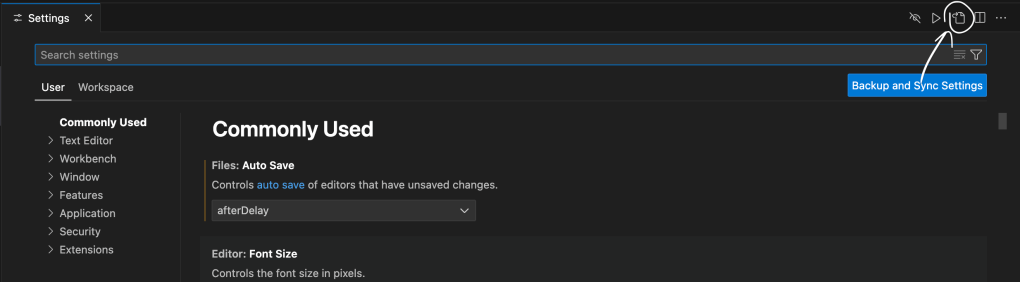
Then click the Open Settings (JSON) icon in the top right (looks like a page with {}) to open the settings.json file.


📝 Step 3: Add Python Format-on-Save Settings

Inside settings.json, add the following:

jsonCopyEdit"[python]": {
"editor.formatOnSave": true,
"editor.defaultFormatter": "ms-python.black-formatter"
}

Optional Formatting Settings

You can also include:

jsonCopyEdit"editor.tabSize": 4,
"editor.insertSpaces": true,
  • "editor.tabSize": 4 ensures indentation uses 4 spaces per level (Python standard).
  • "editor.insertSpaces": true replaces tabs with spaces (again, best practice in Python).

🔄 Step 4: Restart VS Code

After saving your settings.json, you may need to close and reopen VS Code for changes to fully apply.


✅ That’s It!

Now, whenever you save a .py file in VS Code, Black will automatically format it based on its strict, opinionated style — helping you write cleaner, more consistent code effortlessly.

🐛 Streamlit Couldn’t Find selenium — Even Though It Was Installed

Recently, while building a web scraper app with Streamlit, I ran into a frustrating error:

ModuleNotFoundError: No module named 'selenium'

I had already installed selenium using pip install -r requirements.txt, and even confirmed it was installed using:

pip show selenium

and

pip list

Still, Streamlit was throwing the error.

🕵️‍♂️ The Clue

To investigate, I added a simple debug line at the top of my main.py file:

import sys
print("Running from:", sys.executable)

When I ran:

streamlit run main.py

The output showed that Streamlit was running from a different Python environment — not the virtual environment where selenium was installed.

✅ The Fix

It turned out that I simply hadn’t activated the virtual environment before launching Streamlit. Here’s what finally worked:

source env/bin/activate
streamlit run main.py

Once I activated the correct virtual environment, everything worked as expected.


💡 Takeaway

If you ever install a package but your Python app can’t find it, the issue might not be the install itself — but which Python interpreter is being used. Checking sys.executable is a quick way to diagnose mismatched environments.

LeetCode #125: Valid Palindrome (Solution in Python & Explanation)

In this article, I will be explaining how to solve the Valid Palindrome problem on LeetCode. This is an Easy-level problem.

The Problem

A phrase is a palindrome if, after converting all uppercase letters into lowercase letters and removing all non-alphanumeric characters, it reads the same forward and backward. Alphanumeric characters include letters and numbers.

Given a string s, return true if it is a palindrome, or false otherwise.

Example 1:

Input: s = "A man, a plan, a canal: Panama"
Output: true
Explanation: "amanaplanacanalpanama" is a palindrome.

Example 2:

Input: s = "race a car"
Output: false
Explanation: "raceacar" is not a palindrome.

Example 3:

Input: s = " "
Output: true
Explanation: s is an empty string "" after removing non-alphanumeric characters.
Since an empty string reads the same forward and backward, it is a palindrome.

Solution

Alphanumeric characters are the lowercase letters a-z, capital letters A-Z, and integers 0-9.

So, to solve this, we first want to remove all non-alphanumeric characters, including spaces, punctuation, etc., from the input string. Then, we need to check the new string to see if it’s a palindrome. We have two ways we can do this.

Solution #1

For this solution, we create a new string which contains all of the alphanumeric characters from the input string (lowercased). Then, we compare this new string to its reversed version. If they are the same, the function returns true. If not, it returns false.

In order to create the new string, we loop through the characters in the original input string and, if the character is alphanumeric, we append it to the new string.

Finally, we can check if the string (without any special characters or spaces) is a palindrome by using a boolean expression to equate it to its reverse. We can get the reverse of a string by using str[::-1]

def isPalindrome(self, s: str) -> bool:
    newStr = ""
    
    for char in s:
        if char.isalnum():
            newStr += c.lower()
    return newStr == newStr[::-1]

This solution has a time complexity of O(n) because we have to loop through the string to remove non-alphanumeric characters. It also has a space complexity of O(n) because we are creating another string, which could be at most the size of the input string.

Solution #2

For this solution, we will create pointers to the beginning and end of the array which will make sure that the two sides have the same characters in the same order.

First, create two pointers— one which points to the beginning of the string and the other which points to the end. The two pointers will move inwards, checking each character until the reach the middle or overlap with each other.

As the pointers loop through the characters, they will skip any characters that are not alphanumeric. To do this, we use while loops that will continue to run until the character at the left/right index is alphanumeric. We also add a check to make sure that the left/right index is in bounds by checking left < right / right > left

We must make sure to compare the lowercase versions of the characters to each other. If any character at the left pointer does not match the corresponding character at the right pointer, then we know that it’s not a palindrome and can return False. If the entire loop finishes then that must mean the string is a palindrome and we can return True.

def isPalindrome(self, s: str) -> bool:
    left, right = 0, len(s) - 1 
 
    while left < right:
        while left < right and not s[left].isalnum():
            left +=1
        while right > left and not s[right].isalnum():
            right -= 1
        if s[left].lower() != s[right].lower():
            return False 
        left, right = left + 1, right - 1
    return True

The time complexity for this solution is O(n) because you are still looping through the entire string. The space complexity is O(1) because you are not making a new string.

LeetCode: Contains Duplicates (Solution in Python & Explanation)

In this article, I will be explaining how to solve the Contain Duplicates problem on LeetCode. This is an Easy-level question for Arrays.

The Problem

Given an integer array nums, return true if any value appears at least twice in the array, and return false if every element is distinct.

Example 1:

Input: nums = [1,2,3,1]
Output: true

Example 2:

Input: nums = [1,2,3,4]
Output: false

Example 3:

Input: nums = [1,1,1,3,3,4,3,2,4,2]
Output: true

Solution

This problem requires that we loop through the array. We may not have to loop through the entire array depending on when / if we find the first duplicate.

As we loop through the array, we check each array item to see if we’ve seen it before. How can we check if we’ve seen a value in the array before? The naive method would be to do a second loop through the array for each. The program will have a complexity of O(n2) because you are looping through each array element and then, within that loop, you are looping through each array element again.

def containsDuplicate(self, nums: List[int]) -> bool:
        dups = set()
        for n in nums:
            for s in nums:
                if n == s:
                   return True
            dups.add(n)
        return False

This solution is slow and we can solve this problem in a more efficient way.

As we loop through the array, we can keep track of the values that we’ve seen thus far. Then, as we continue looping through and checking new values, we can check if they are already in the set of values that we’ve seen before. How can we keep track of the values that we’ve seen? We can use a hash set. This solution takes O(n) time because we are only looping through the array once instead of twice.

def containsDuplicate(self, nums: List[int]) -> bool:
        dups = set()
        for n in nums:
            if n in dups:
                return True
            dups.add(n)
        return False

There is another solution that is even more simple in terms of readability. It is only one line. Basically, we convert the list of numbers into a hash set and compare the length of the set to the length of the original list. If the lengths are different then that must mean that there are duplicate items in the original list because the duplicates are taken out of the set.

This solution uses the no duplicates property of hash sets to solve the problem in an extremely simple way. The time complexity of this solution is also O(n) because that is the complexity of converting a list to a set.

def containsDuplicate(self, nums: List[int]) -> bool:
        return len(set(nums))!=len(nums)

Overlapping Histograms with Matplotlib Library in Python

In this tutorial, you will learn how to plot overlapping histograms on the same graph. This is helpful when you want to show a comparison between two sets of data.

Step 1: Import the matplotlib library and matplotlib.pyplot interface

import pandas as pd

import matplotlib
%matplotlib inline
import matplotlib.pyplot as plt

Step 2: Load the dataset

baby_df = pd.read_csv('baby.csv')
baby_df.head(5)

Step 3: Plot overlapping histograms

# Split the dataframe by column value
smoker_df = baby_df.loc[baby_df['Maternal Smoker'] == True]
nonsmoker_df = baby_df.loc[baby_df['Maternal Smoker'] == False]

# Generate histogram plot
plt.hist(smoker_df["bmi"], 
         label='Maternal Smokers BMI')
  
plt.hist(nonsmoker_df['bmi'], 
         label='Maternal Non-smokers BMI')
  
plt.legend(loc='upper right')
plt.title('Mother BMI for smokers and non-smokers')
plt.show()

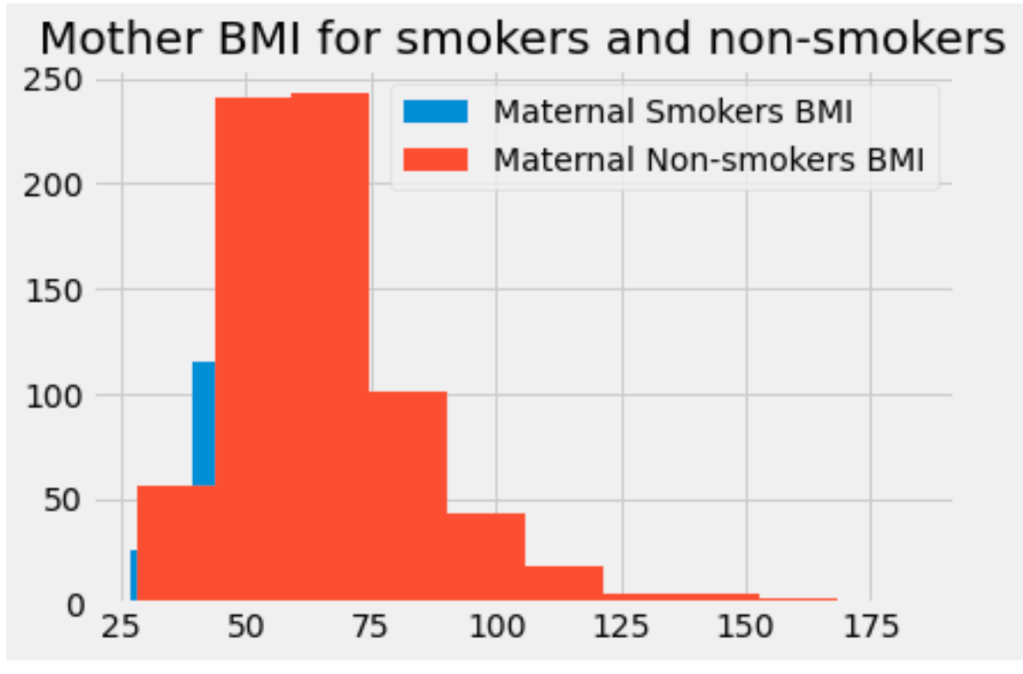
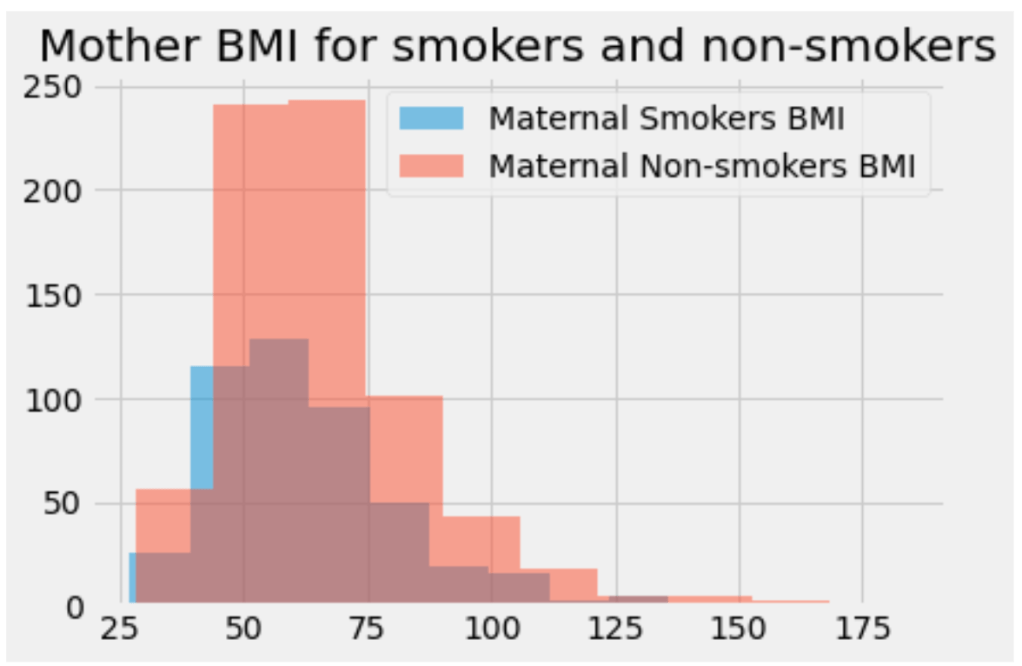
We’ve generated overlapping histograms! But, in this graph, it’s hard to see the blue histogram. We can give the histograms an opacity value less than 1.0 so that they become translucent, or see-through. This will allow us to see both of them.

Set alpha values

The only difference is adding the optional alpha parameter to the hist method. The alpha value can be any decimal between 0 and 1. Each plot can have a unique alpha value.

# Generate histogram plot
plt.hist(smoker_df["bmi"], 
         alpha=0.5,
         label='Maternal Smokers BMI')
  
plt.hist(nonsmoker_df['bmi'], 
         alpha=0.5
         label='Maternal Non-smokers BMI')

You can also have more than 2 overlapping plots. In this case, it can be helpful to manually set the color for each histogram. We can do this by adding the color parameter to each hist call:

plt.hist(dataset['value'], 
         alpha=0.5, 
         label='val 1',
         color='red') # customized color parameter
  
plt.hist(dataset['value2'], 
         alpha=0.5,
         label='val 2',
         color='green')
  
plt.hist(dataset['value3'], 
         alpha=0.5,
         label='val3',
         color='yellow')

How to Split Pandas DataFrame into Multiple DataFrames by Column Value in Python

In this tutorial, I will show you how to create a separate DataFrame for each value for a given column.

Use the pandas.DataFrame.groupby(column) method to group the DataFrame by the values found in the column named column.

grouped_df = df.groupby('Column')

This method returns a GroupBy object. You can see this yourself by printing the new dataframe by running print grouped_df:

<pandas.core.groupby.generic.DataFrameGroupBy object at 0x7efe3ec55670>

With the GroupBy object from the previous function, call the DataFrameGroupBy.get_group(group) method on the new dataframe grouped_df

This method will return a Dataframe of all the rows that have the value group in the column named column.

grouped_df.get_group('column_value')

Alternatively, you can call both methods in one line:

value_df = df.groupby('Column').get_group('column_value')

Return the n largest/smallest values for column in DataFrame

Get n-largest values from a particular column in Pandas DataFrame

df.nlargest(5, 'Gross')

Return the first n rows with the smallest values for column in DataFrame

df.nsmallest(5, ['Age'])

To order by the smallest values in column “Age” and then “Salary”, we can specify multiple columns like in the next example.

df.nsmallest(5, ['Age', 'Salary'])

There is also an optional keep parameter for the nlargest and nsmallest functions. keep has three possible values: {'first', 'last', 'all'}. The default is 'first'

Where there are duplicate values:

  • first : take the first occurrence.
  • last : take the last occurrence.
  • all : do not drop any duplicates, even it means selecting more than n items.
df.nlargest(5, 'Gross', keep='last')

Working with a New Dataset / DataFrame

When you are working with a new Pandas DataFrame, these attributes and methods will give you insights into key aspects of the data.

The dir function let’s you look at all of the attributes that a Python object has.

dir(df)

The shape attribute returns a tuple of integers indicating the number of elements that are stored along each dimension of an array. For a 2D-array with N rows and M columns, shape will be (N,M). 

df.shape

You may be working with a dataframe that has hundreds or thousands of rows. To get a glimpse of the data inside a dataframe without printing out all of the values you can use the head and tail methods.

Returns the first n rows in the dataframe

df.head() # returns rows 0-4
df.head(n) # returns the first n rows

Returns the last n rows in the dataframe

df.tail()
df.tail(n)

The count method of a dataframe shows you the number of entries for each column

df.count()

Check if there are any missing values in any of the columns

pd.isnull(df).any()

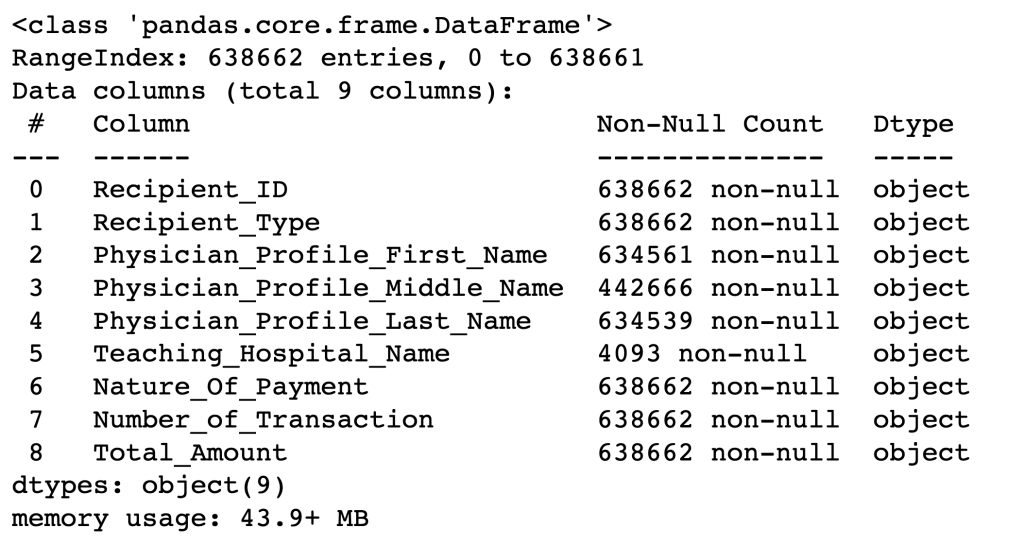
The info method of the dataframe gives a bunch of information. It tells

  1. The number of entries in the df
  2. The names of the columns
  3. The number of columns
  4. The number of entries in each column
  5. The dtype of each column
  6. If there are null values in a column
df.info()

Different Ways to Create Pandas DataFrames

A Pandas DataFrame is a 2D labeled data structure with columns of potentially different types.

There are a variety of different methods and syntaxes that can be used to create a pd.DataFrame.

Firstly, make sure you import the pandas module:

import pandas as pd

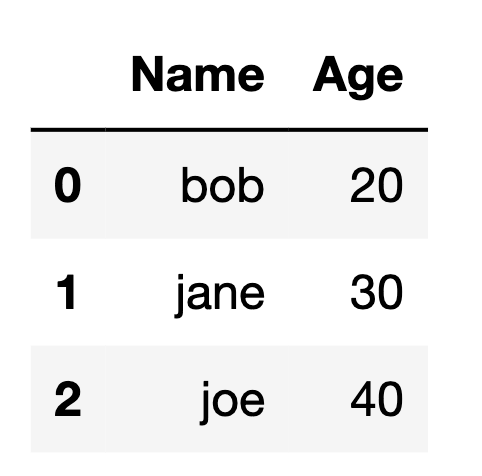
Method 1: Creating DataFrame from list of lists

# initialize list of lists
data = [['bob', 20], ['jane', 30], ['joe', 40]]
 
# Create the pandas DataFrame
df = pd.DataFrame(data, columns = ['Name', 'Age'])
df

Output:

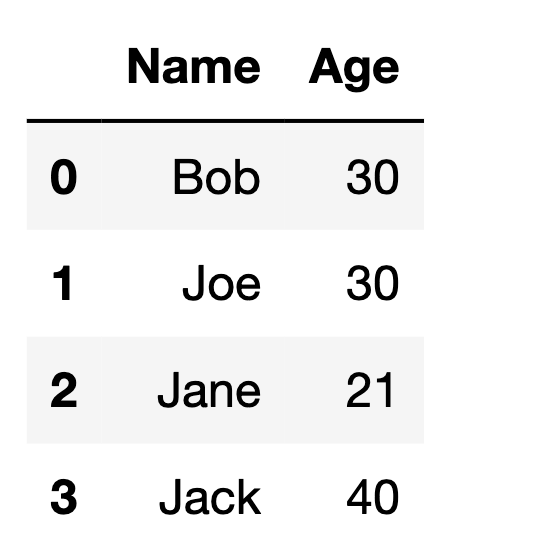
Method #2: Creating DataFrame from dictionary of lists

In this method, you define a dictionary which has the column name as the key which corresponds to an array of row values.

# initialize dictionary of lists
data = {'Name': ['Bob', 'Joe', 'Jane', 'Jack'],
        'Age': [30, 30, 21, 40]}
 
# Create DataFrame
df = pd.DataFrame(data)
df

Output:

You can use custom index values for the DataFrame by adding a parameter to the pd.DataFrame function. Set the optional index parameter of the pd.DataFrame function to an array of strings for the index values.

df = pd.DataFrame(data, index=['first',
                                'second',
                                'third',
                                'fourth'])
df

Output:

In the same way that we just defined the index values, you can also define the column names separately. Set the optional columns parameter of the pd.DataFrame function to an array of strings for the column values.

Notice that the row values are now defined as a list of lists rather than a dictionary of lists. This is because the column values are no longer being defined with them.

df = pd.DataFrame(
    [[4,5,6],
     [7,8,9],
     [10,11,12]],
    index = ['row_one','row_two','row_three'],
    columns=["a","b","c"]
    )

df

Output:

Method #3: Creating DataFrame using zip() function.

The zip function returns an iterator of tuples where the corresponding items in each passed iterator is paired together. By calling the list function on the object returned from the zip function, we convert the object to a list which can be passed into the pd.DataFrame function.

name = ["Bob", "Sam", "Sally", "Sue"]
age = [19, 17, 51, 49]

data = list(zip(name, age))

df = pd.DataFrame(data,
                  columns = ['Name', 'Age'])

df

Output:

How to Split Training and Test Data in Python

In this article, I’ll be explaining why you should split your dataset into training and testing data and showing you how to split up your data using a function in the scikitlearn library.

If you are training a machine learning model using a limited dataset, you should split the dataset into 2 parts: training and testing data.

The training data will be the data that is used to train your model. Then, use the testing data to see how the algorithm performs on a dataset that it hasn’t seen yet.

If you use the entire dataset to train the model, then by the time you are testing the model, you will have to re-use the same data. This provides a slightly biased outcome because the model is somewhat “used” to the data.

We will be using the train_test_split function from the Python scikitlearn library to accomplish this task. Import the function using this statement:

from sklearn.model_selection import train_test_split

This is the function signature for the train_test_split function:

sklearn.model_selection.train_test_split(*arrays, test_size=None, train_size=None, random_state=None, shuffle=True, stratify=None)

The first parameters to the function are a sequence of arrays. The allowed inputs are lists, numpy arrays, scipy-sparse matrices or pandas dataframes.

So the first argument is gonna be our features variable and the second argument is gonna be our targets.

# X = the features array
# y = the targets array
train_test_split(X, y, ...)

The next parameter test_size represents the proportion of the dataset to include in the test split. This parameter should be either a floating point number or None (undefined). If it is a float, it should be between 0.0 and 1.0 because it represents the percentage of the data that is for testing. If it is not specified, the value is set to the complement of the train size.

This is saying that I want the test data set to be 20% of the total:

train_test_split(X, y, test_size=0.2)

train_size is the proportion of the dataset that is for training. Since test_size is already specified, there is no need to specify the train_size parameter because it is automatically set to the complement of the test_size parameter. That means the train_size will be set to 1 – test_size. Since the test_size is 0.2, train_size will be 0.8.

The function has a shuffle property, which is set to True by default. If shuffle is set to True, the function will shuffle the dataset before splitting it up.

What’s the point of shuffling the data before splitting it? If your dataset is formatted in an ordered way, it could affect the randomness of your training and testing datasets which could hurt the accuracy of your model. Thus, it is recommended that you shuffle your dataset before splitting it up.

We could leave the function like this or add another property called random_state.

random_state controls the shuffling applied to the data before applying the split. Pass an int for reproducible output across multiple function calls. We are using the arbitrary number 10. You can really use any number.

train_test_split(X, y, test_size=0.2, random_state=10)

The function will return four arrays to us: a training and testing dataset for the feature(s), and a training and testing dataset for the target.

We can use tuple unpacking to store the four values that the function returns:

X_train, X_test, y_train, y_test = train_test_split(X, y, test_size=0.2, random_state=10)

Now, you can verify that the splitting was successful.

The percent of the training set will be the number of rows in X_train divided by the total number of rows in the dataset as a whole:

len(X_train)/len(X)

The percent of the testing dataset will be the number of rows in X_test divided by the total number of rows in the dataset:

len(X_train)/len(X)

The numbers returned by these calculations will probably not be exact numbers. For example, if you are using an 80/20 split, then this division by give you numbers like 0.7934728 instead of 0.80 and 0.1983932 instead of 0.20.

That’s it!